
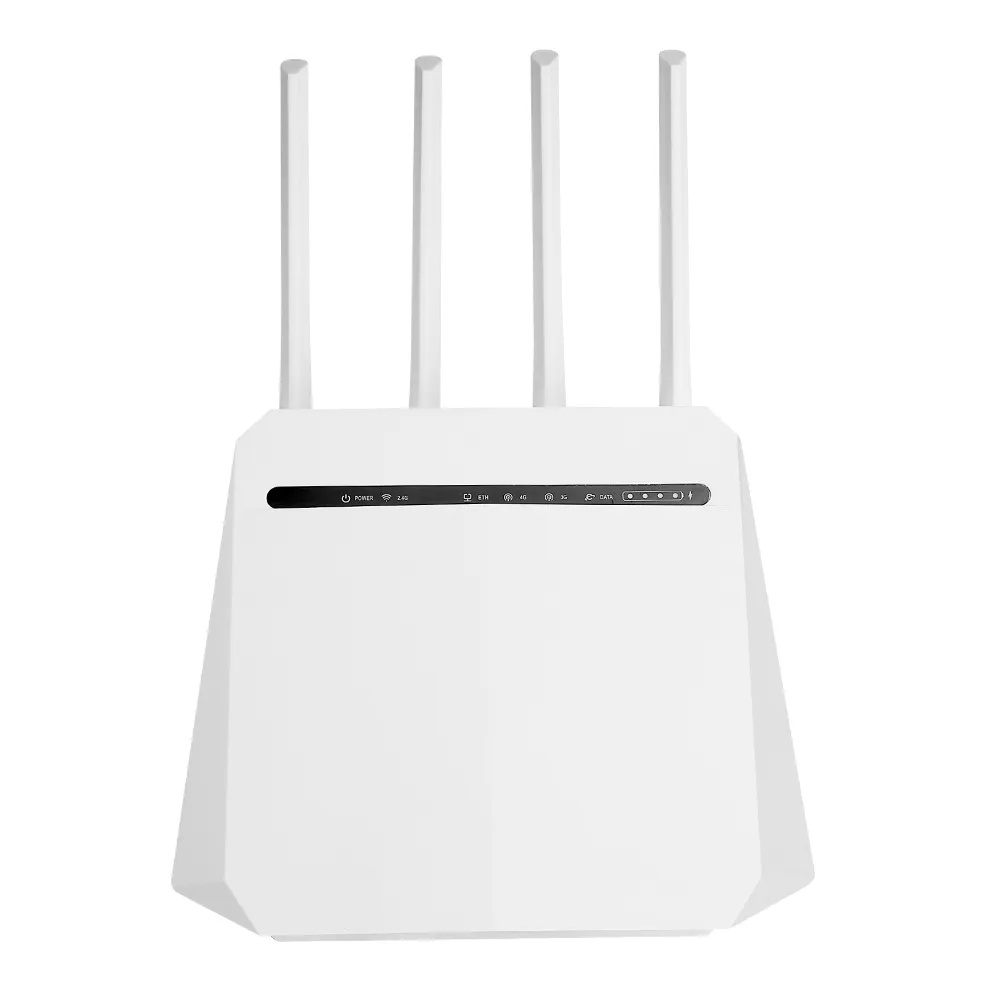
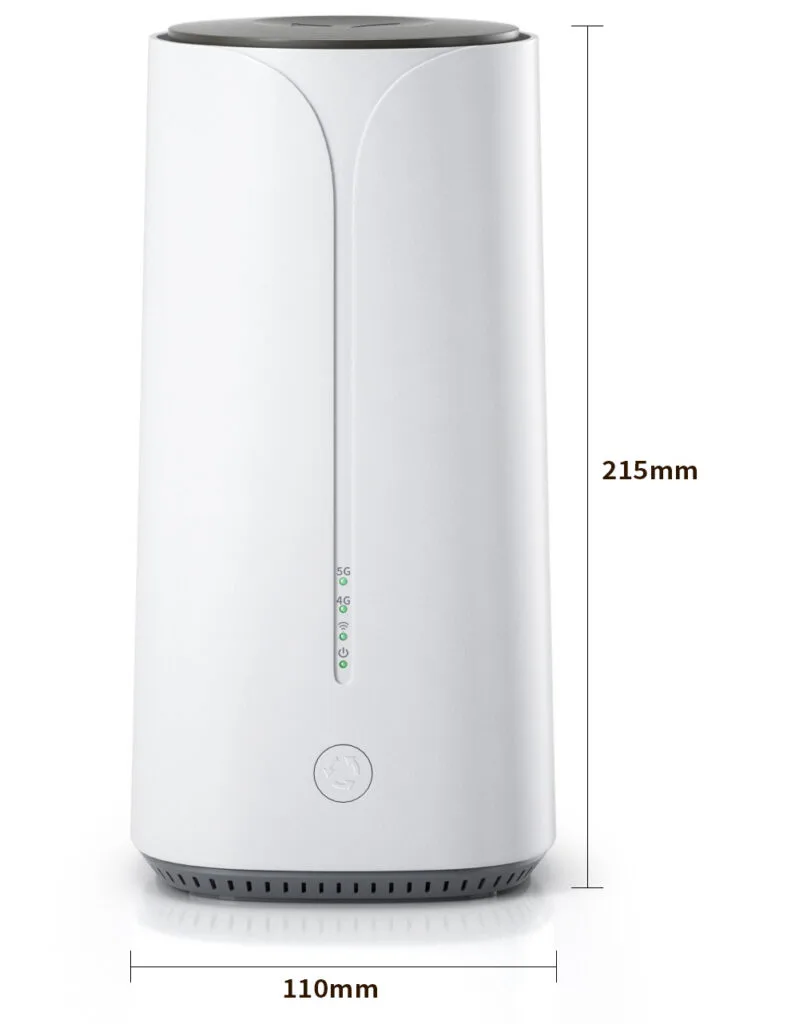
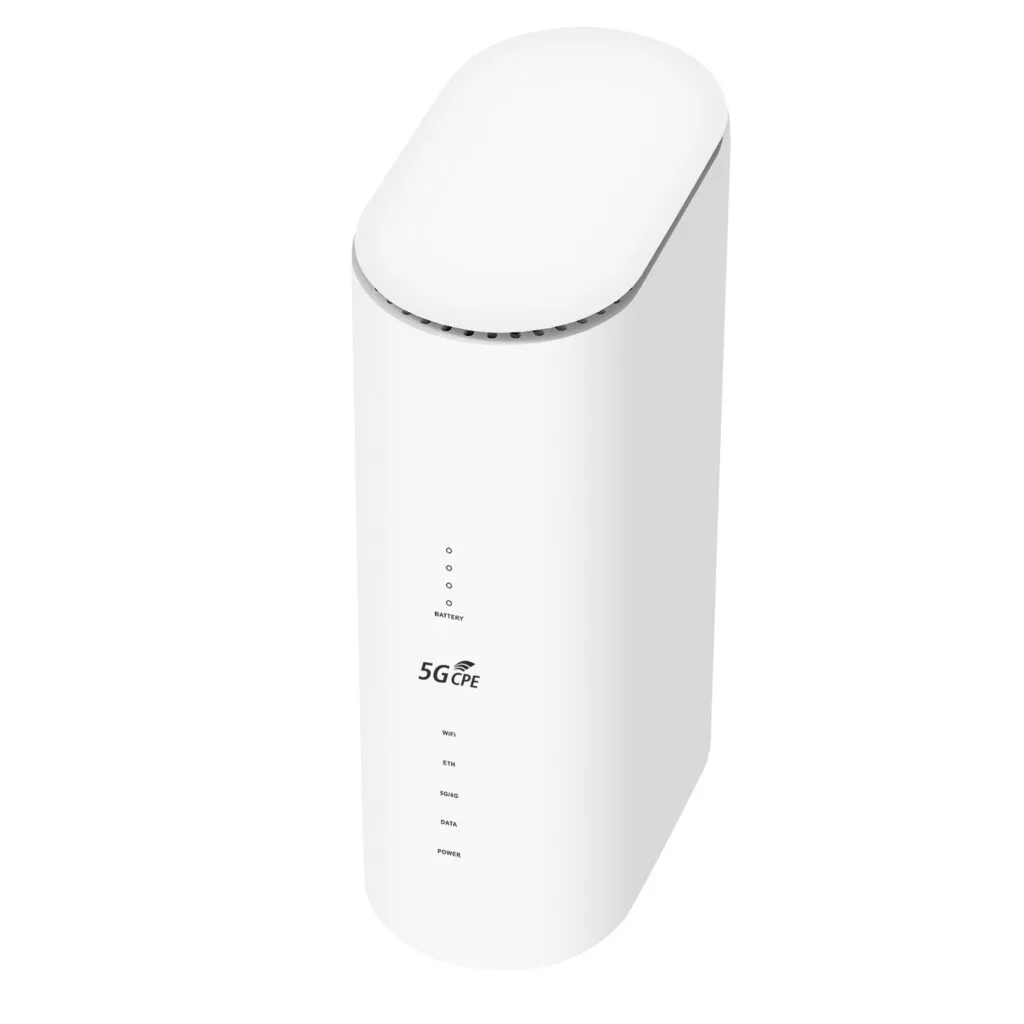
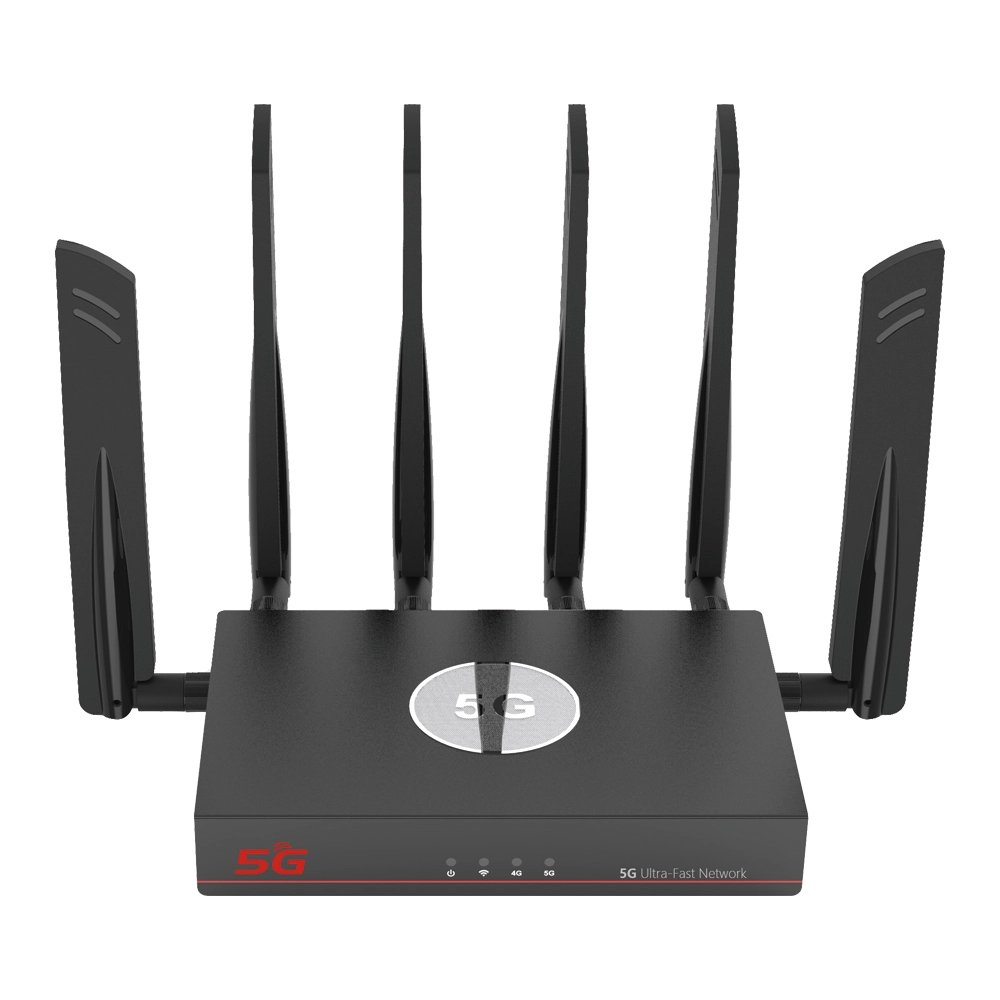
In today’s world, digital life is everywhere, a stable, high-speed home wireless network has become the fourth essential utility right after water, electricity and gas. At the heart of it all is often an unassuming little device with blinking indicator lights—the wireless router such as 4g wifi router with sim card slot and external antenna or wifi router sim 5g. Many people’s understanding of it might stop at “that box that lets my phone go online,” but its internal world is far more complex and fascinating than one might imagine.
Part 1: Explore the Basics – How Does a Wireless Router Work?
To understand how to use it well, you first need to know what it does. Simply put, a wireless router acts as both traffic hub and signal tower of your home network. Its core functions are routing and switching. When your broadband signal enters the router via fiber optic cable or Ethernet, the router first performs routing—analyze destination of data packets, choose the best path for them, and decide whether to forward them within the home LAN or out to the internet. Simultaneously, its switching function efficiently transfers data between wired devices connected to it such as desktop computers and network TV boxes.
But its most magical feature is the wireless access point function. The router’s built-in wireless chips and antennas modulate the processed network data into specific radio frequencies primarily 2.4GHz and 5GHz bands and broadcast it. The wireless network cards built into your phones, tablets, laptops etc., receive these radio waves like a radio, demodulate them back into the web pages you browse and the videos you watch. This process happens tens of thousands of times per second, form the basis of our wireless surfing experience.
Part 2: Hardware Decoded – Core Components Inside the Chassis
A router’s performance depends directly on its internal hardware ingredients. First is the CPU which is the router’s brain, responsible for all routing calculations, security policies and functional management. The more powerful the processor, the better it handles multiple devices and high data traffic simultaneously, especially crucial for advanced features like game acceleration and intranet penetration.
Next is memory, include RAM and flash memory. RAM determines how many tasks and data sessions the router can handle concurrently, akin to a computer’s RAM; flash memory stores the router’s operating system (firmware) and your personalized settings. Large memory is a prerequisite for ensuring stable connections for many devices.
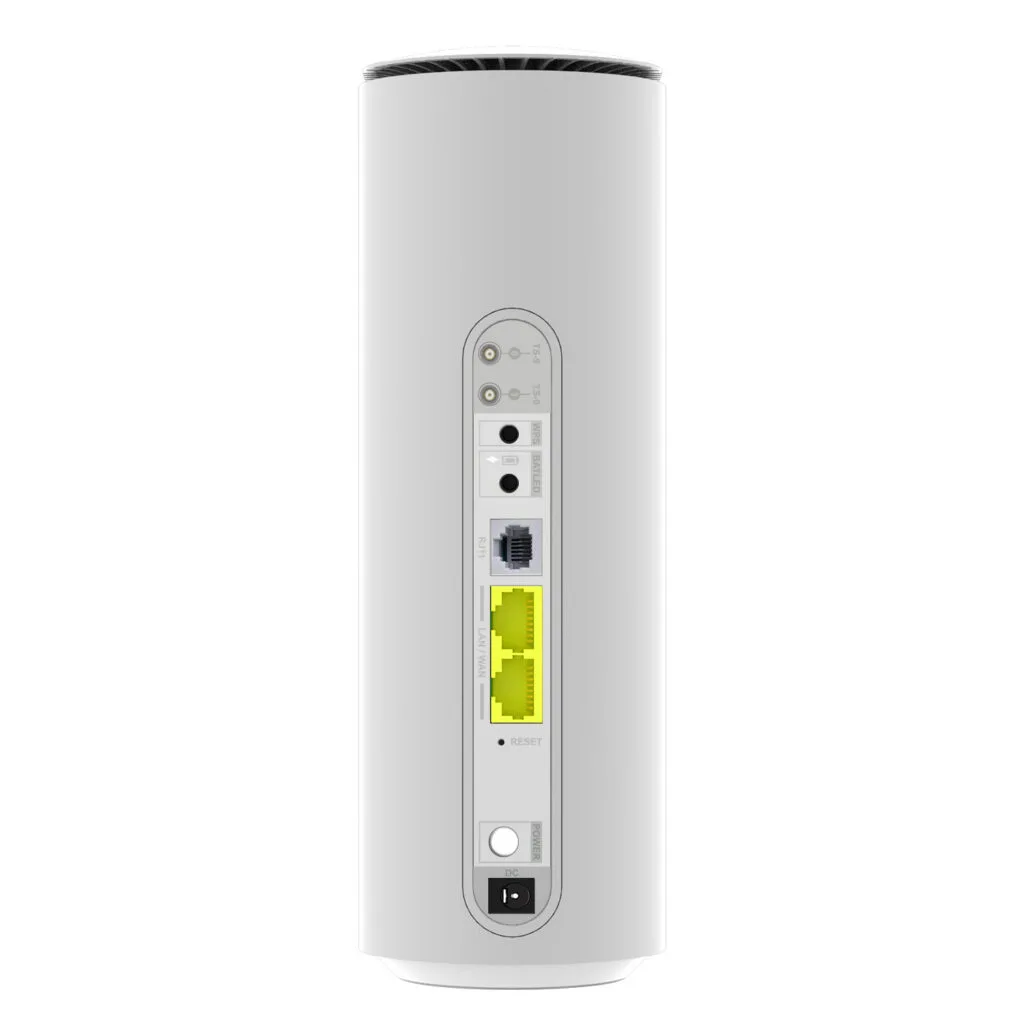
The wireless chip and antenna system directly determine signal coverage and quality. Chips supporting MIMO (Multiple Input Multiple Output) technology can send and receive data simultaneously through multiple antennas, greatly enhance wireless speeds and anti-interference capabilities. More antennas aren’t always better, the design, gain and internal circuit synergy are more important. Additionally, gigabit WAN and LAN ports are key to ensure wired connection speeds aren’t the bottleneck.
Part 3: Frequency Battle – Understand 2.4GHz vs. 5GHz Dual-Band
Modern routers such as 4g wifi router with sim card slot and external antenna or wifi router sim 5g generally support simultaneous dual-band operation. 2.4GHz band features low frequency and long wavelength, give it strong ability to penetrate obstacles like walls and relatively wider coverage. However, it has few usable channels and many household devices like Bluetooth gadgets and microwave ovens operate on this band, lead to congestion and interference, result in unstable speeds and high latency.
5GHz band has high frequency, plenty of clean channels and minimal interference, offer very high transmission speeds and very low latency. It’s ideal for online gaming, ultra-HD video streaming and other quality-demanding applications. However, its signal penetration is weaker and its coverage is generally smaller than 2.4GHz band. A good dual-band router can intelligently guide devices to the more suitable band or merge the two bands under one network name for automatic optimal selection.
Part 4: Speed Myths–Understand Gigabit, Wireless Transmission Rate and Broadband Matching
Product packaging boasts wireless transmission rates like 3000Mbps or 5000Mbps, these are theoretical combined values, summed the maximum speeds of multiple bands under ideal lab conditions such as 1200Mbps+2400Mbps=3600Mbps. This figure primarily reflects the maximum speed between intranet devices like transferring large files from a phone to a home NAS.For internet access, the real bottleneck is your broadband plan’s bandwidth and the router’s WAN port speed. If you have a 500Mbps broadband plan, choose a router with all gigabit ports for both WAN and LAN is a basic requirement, otherwise you couldn’t fully utilize your bandwidth. Higher wireless transmission rates will handle the demands of multiple devices better concurrently access high-speed intranet resources within your home.
Part 5: Standard Evolution – From Wi-Fi 4 to Wi-Fi 6 (802.11ax)
Wi-Fi technical standards are set by the IEEE (Institute of Electrical and Electronics Engineers). We’ve moved from early Wi-Fi 4 (802.11n) to the mainstream Wi-Fi 5 (802.11ac), and now toward Wi-Fi 6 (802.11ax). Wi-Fi 5 offers much higher speeds, lower latency and stronger multi-device concurrency than Wi-Fi 4. Routers support Wi-Fi 6 introduce more efficient encoding technologies, wider channels and multi-user technologies like OFDMA (Orthogonal Frequency Division Multiple Access), significantly improve performance in dense device environments, make them a future-proof choice.
Part 6: Buying Guide 1 – Based on Home Size and Layout
The first step to buy a router is to assess your coverage needs. For a simple studio or one-bedroom apartment under 60 square meters, a mainstream Wi-Fi 5 dual-band router is usually sufficient. For a medium-sized home of 80-120 square meters, especially with load-bearing walls, prioritize products with high-performance external antennas and strong signal gain.
For duplex homes, villas or large single-floor apartments over 140 square meters, a single router will inevitably have dead zones. Consider a distributed router system or a mesh network system. These systems consist of multiple nodes that network via wired or wireless connections, automatically form a seamless blanket network. Connections switch automatically as devices move between nodes, make this the best solution for full-coverage, high-speed internet without dead zones throughout the house.
Part 7: Buying Guide 2 – Based on Number of Connected Devices and Usage
Modern homes often have 20-30 connected devices, include phones, computers, tablets, smart TVs, cameras, smart speakers etc. The more devices, the higher the demands on the router’s data processing capacity and device limit. If family members frequently engage in online gaming, video conferencing and ultra-HD video streaming simultaneously, you need router with multi-core, high-performance processor and large memory to ensure stability and low latency under heavy load.
If you need to set up a home NAS (Network Attached Storage) or perform high-speed file sharing on your intranet, besides ensuring the router’s wired ports are gigabit, consider whether it supports link aggregation or comes with 2.5GbE or even 10GbE ports to unlock the full potential of intranet transfers.
Part 8: Buying Guide 3 – Focus on Ease of Use and Extended Features
For most users, a friendly management interface is crucial. Many brands now offer clean, simple mobile apps that make setting up the network, manage connected devices, implement parental controls and testing internet speeds effortless. Some routers also support voice control via smart speakers for simple management tasks.
Regarding extended features, look for UPnP (Universal Plug and Play), DDNS (Dynamic Domain Name System) for convenient remote access to intranet devices, built-in or installable VPN server support for securely access your home network from outside, and dedicated game-optimized modes that automatically identify and prioritize game data packets.
Part 9: First Steps – Proper Connection and Initial Setup
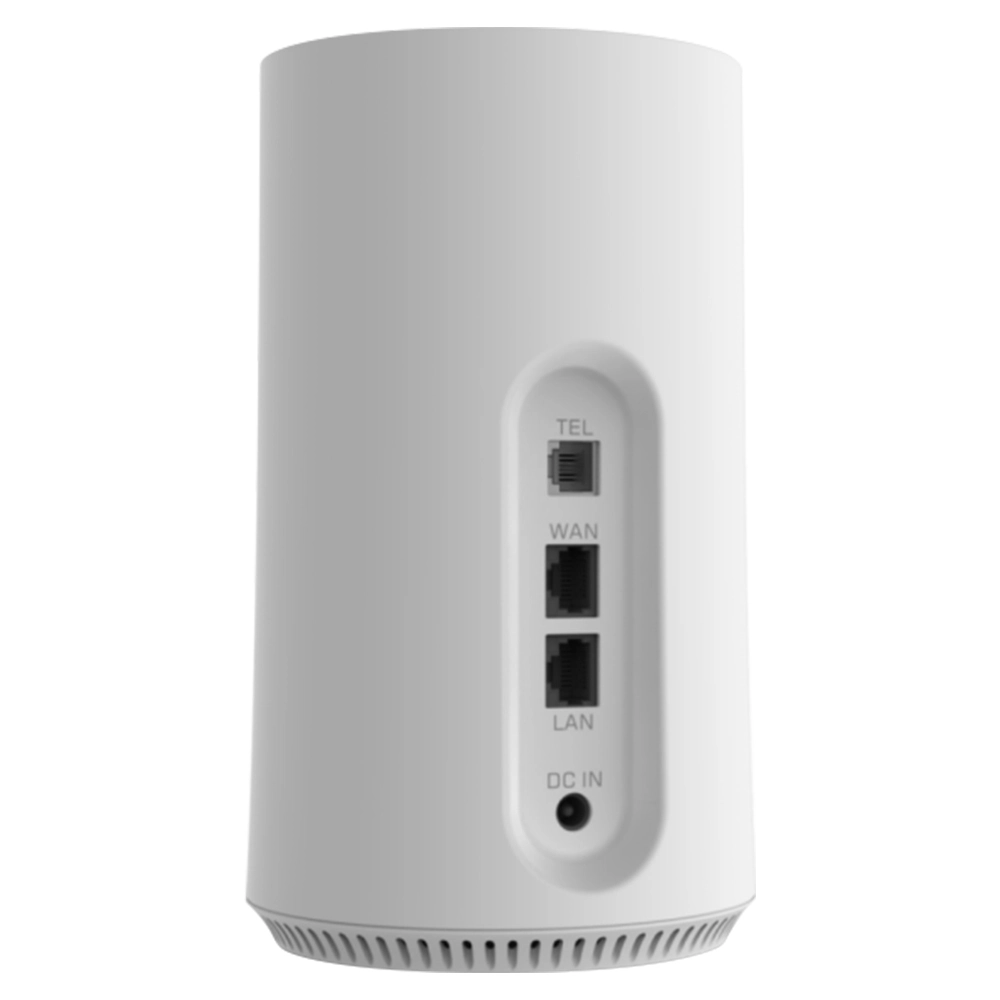
After getting your new router, first use the included Ethernet cable to connect the optical modem’s or broadband line’s LAN port to the router’s WAN port. Power on the router, after a moment, use your phone or computer to connect to the default wireless network name printed on the label on the router’s bottom.
Open a browser, enter the management address (usually a number like 192.168.1.1) to access the admin panel. Most new routers will show a setup wizard. Follow the wizard, select your internet connection type such as Dynamic IP Address or PPPoE, and enter your broadband username and password if needed. This step is crucial for the router to access the internet.
Part 10: Key Settings – Create a Secure and Reliable Wireless Network
After completing basic internet setup, the primary task is to set up your wireless network. It’s highly recommended to create independent network names (SSIDs) and passwords for 2.4GHz and 5GHz bands to allow manual selection. Use WPA2 (Wi-Fi Protected Access 2) encryption with a strong password composed of uppercase and lowercase letters, numbers and symbols, ideally over 12 characters long.
Be sure to change the router’s default administrator login password to prevent others from tampering with your network settings. You can hide the SSID in the wireless settings so that only devices manually entering the exact name and password can connect, enhance security. Periodically check the list of connected devices and remove any unknown ones.
Part 11: The Art of Placement – Location Determines Signal Quality
The router’s placement dramatically affects its performance. The ideal spot is the central area of your home, placed as high as possible, like on a bookshelf or the top of a cabinet, avoid floors and corners. Keep it away from appliances that’ll cause electromagnetic interference, like microwaves, cordless phones and Bluetooth speakers.
Be particularly aware that metal objects, load-bearing walls and mirrors seriously block and reflect wireless signals. Put the router’s antennas (if any) vertically at different angles, as the signal radiates perpendicularly to the antenna. If use a router with internal antennas, ensure there are no obvious obstructions around it.
Part 12: Advanced Optimization – Unlock Your Router’s Full Potential
For users seeking the ultimate experience, some advanced settings are possible. In the management interface, manually select one of the non-overlapping channels such as 1, 6 or 11 for 2.4GHz band. For 5GHz band, select higher channels like 149 or 153 to avoid co-channel interference from neighbor’s routers.
If your router supports QoS (Quality of Service), allocate bandwidth priority. For example, set your gaming console or work computer to high priority to ensure their network experience for critical applications. Periodically visit the router manufacturer’s website to check for update firmware, this isn’t only fix vulnerabilities but may also bring performance improvements and new features.
Part 13: Troubleshooting – When the Network Acts Up
If you experience lag or disconnections, first try to restart both router and optical modem, this will resolve most temporary software glitches. Use a speed test app, if speeds are far below your broadband plan’s rate, check for aging Ethernet cables, loose connections or try to connect a computer directly to the optical modem via cable to test if the issue lies with the router.
If a specific device has trouble connecting, try to make it forget the network and re-enter the password. If a particular room consistently has a weak signal, consider to extend coverage by adding powerline adapters, deploy a wireless range extender or add a mesh node.
Part 14: Future-Proofing – The Foundation for Smart Homes and IoT
With explosive growth of smart home devices, router such as 4g wifi router with sim card slot and external antenna or wifi router sim 5g is becoming the central hub of home IoT. Many new routers already have built-in smart home connectivity protocols like Matter to more stably connect and manage numerous low-power devices. Choose a powerful, stable router lays a solid foundation to add more smart devices in the future.
Given increasing popularity of ultra-HD video, VR (Virtual Reality) and AR (Augmented Reality), data traffic within homes will grow exponentially. Planning ahead by choosing a router with some performance headroom is a wise investment to ensure your network experience remains up-to-date for the next 3-5 years.
Part 15: Environmental Protection and Energy Saving – Overlooked Details
As devices that run year-round, a router’s energy efficiency is worth attention. Choose routers with relevant energy certifications will save electricity over long-term use. Some routers have scheduled power-on/off features, automatically shutting off wireless signals during nighttime sleeping hours, save energy and reduce unnecessary electromagnetic radiation.
Properly manage connected devices and disconnect those not in use can also reduce the router’s load, indirectly lower power consumption. Keep your router well-ventilated to prevent overheating to extend its lifespan and maintain optimal energy efficiency.
Part 16: Conclusion – Let Technology Serve Life
Ultimately, a wireless router is a technological tool serving our lives, understand its principles will allow us to respond calmly when it acts up. Learning to choose and optimize it to ensure that a fast, stable network become a solid backbone for our work, study and entertainment, rather than a source of frustration.


What can we do for you?