
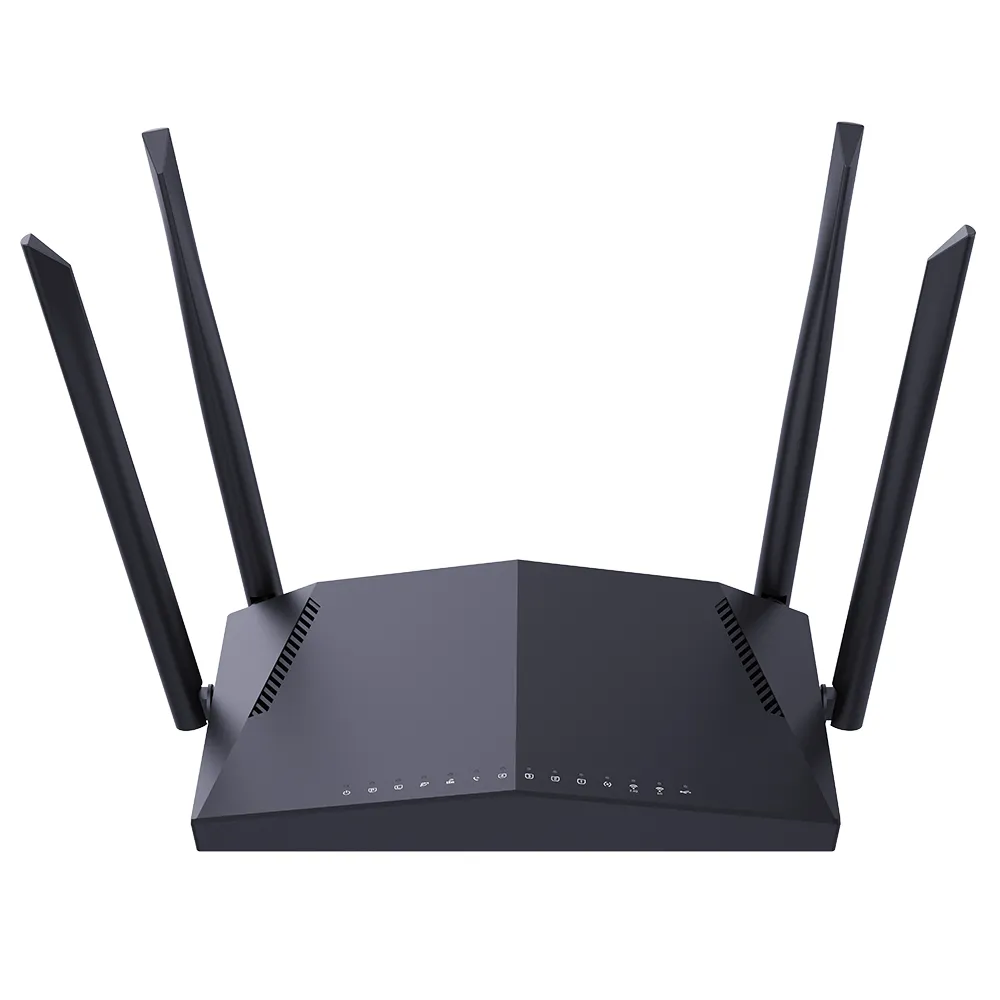
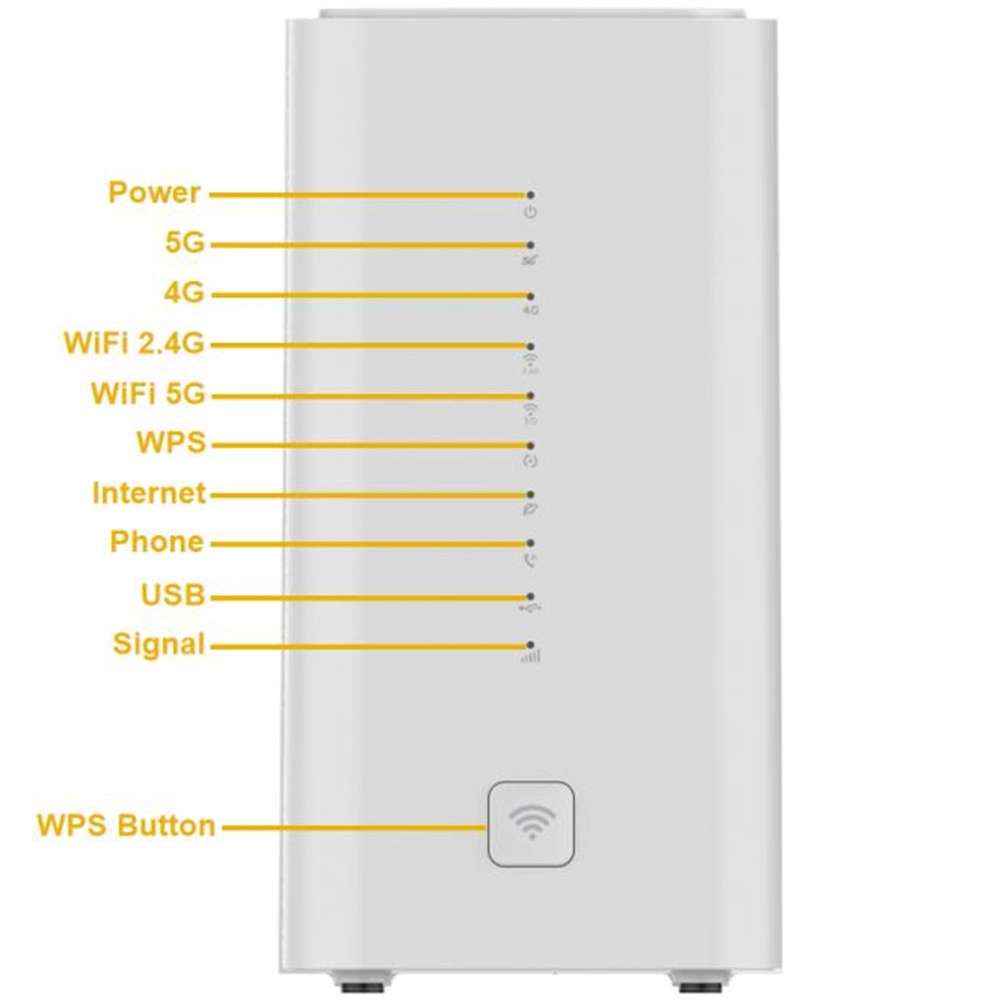
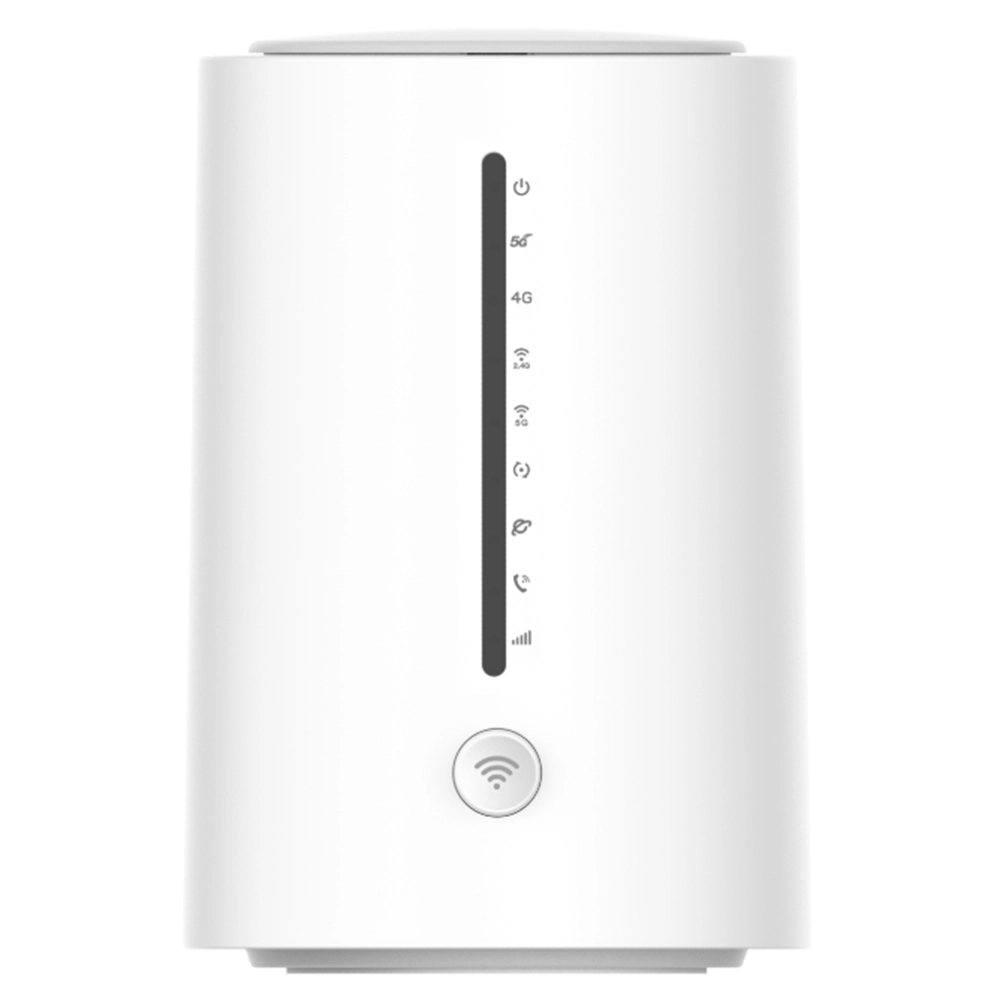
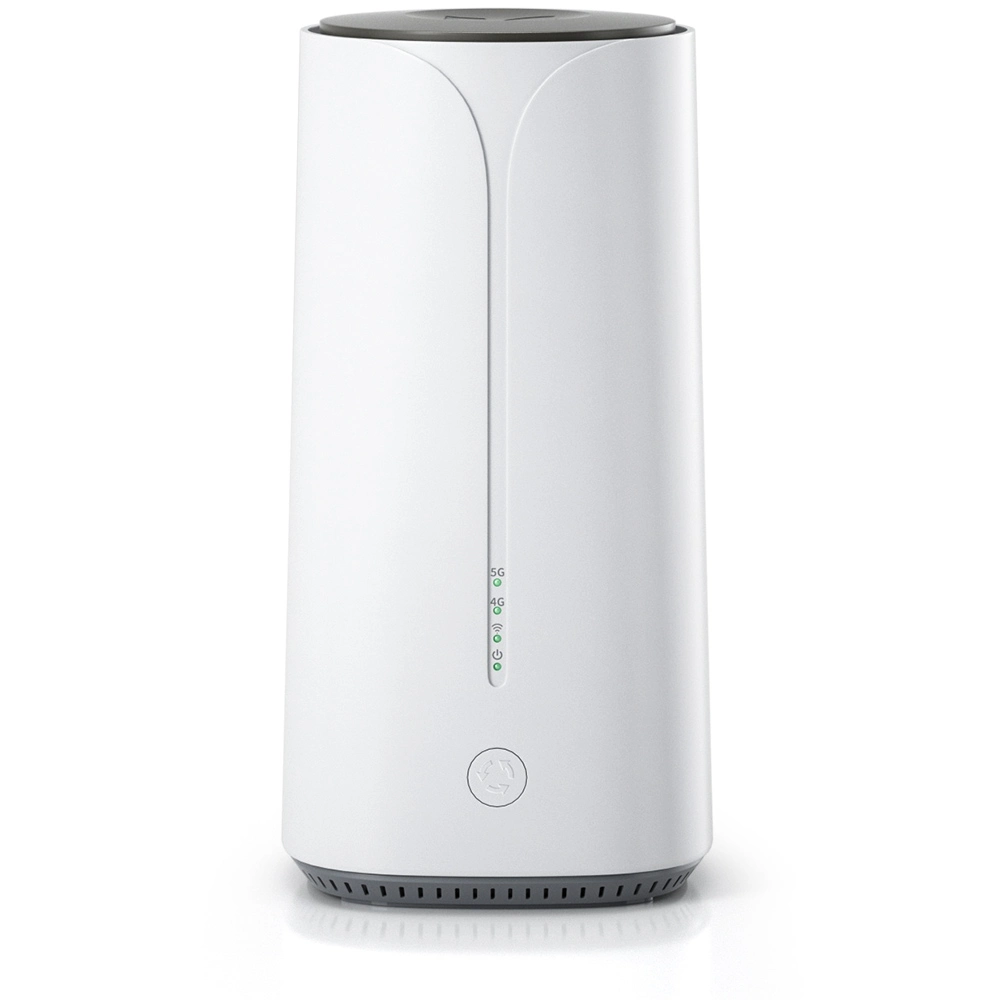
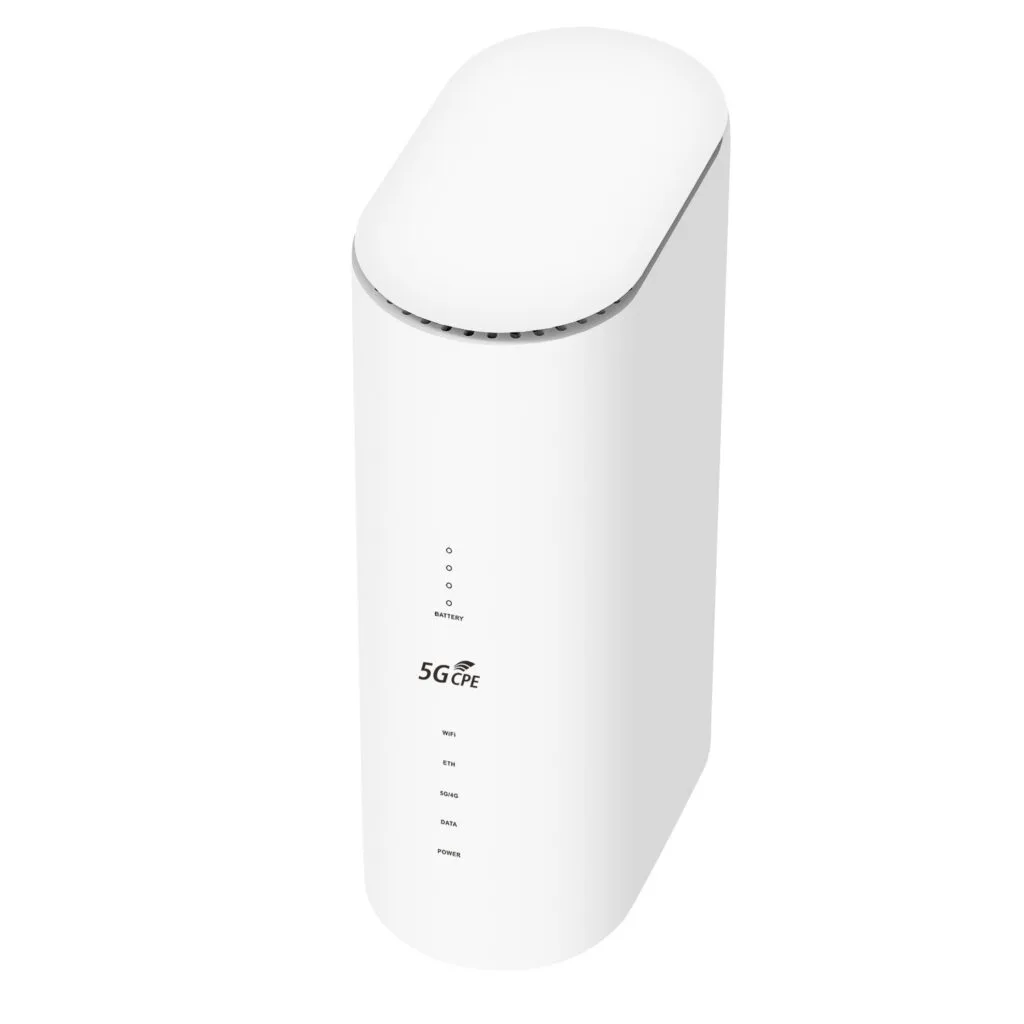
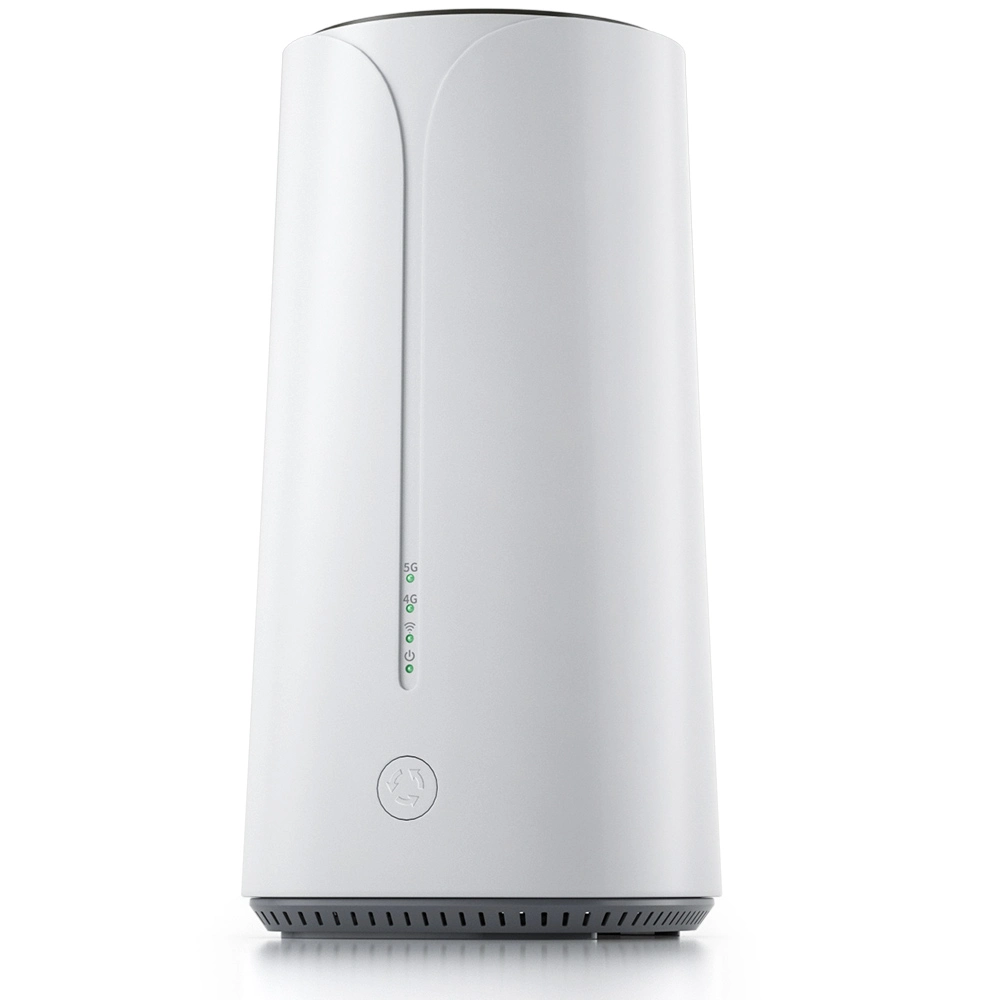
In modern homes and offices, router such as strong 4g lte router or cellular router 5g plays a crucial role as a central hub. Its indicator lights are not just decorative, they are the health barometer of its operating status. When all the indicator lights on your router go dark, it usually means the router has completely lost power or is experiencing a serious hardware failure. This usually means the device has completely stopped working, and the network connection is interrupted. Although this type of failure is tricky, we can find the problem and solve it follow a clear troubleshooting path.
Part 1: Check the Most Basic Power Supply Links
The prerequisite for any electronic device to work is a stable and reliable power supply, so the first step in troubleshooting must focus on every part of the power supply chain.
1. Confirm the power outlet is working
This may seem like the simplest step, but it is the most easily overlooked. First, check whether the wall outlet or power strip into which the router’s power adapter is plugged has power. You can try to plugg another small, working appliance like a lamp or phone charger into the same outlet to see if it turns on. If the outlet itself has no power, it should be due to a tripped circuit breaker, aging or damaged internal wiring in the outlet, or the power strip’s switch being off. Ensure the power source connected to the router is working is the foundation for all subsequent checks.
2. Carefully inspect the power adapter
Power adapter is a key component that converts household AC power into DC power required by the router, and it is also a common point of failure. First, look at the adapter body for any obvious physical damage, such as a cracked casing, burn marks or unusual odors. Second, inspect the connecting cable, especially the round-tipped cable from the adapter’s output to the router. Check if the connectors at both ends are loose, have exposed internal copper wires, or are overly bent. Try gently wiggle the connections where the cable meets the adapter and the router, while watching for any momentary flicker of the router’s lights – this can help to determine if there is a poor contact. If possible, use a multimeter to measure the adapter’s output voltage to see if it matches the specifications on the router’s bottom label such as commonly 12V or 9V, zero voltage or a reading far below the standard value indicates the adapter is damaged.
3. Check the router’s own power connector
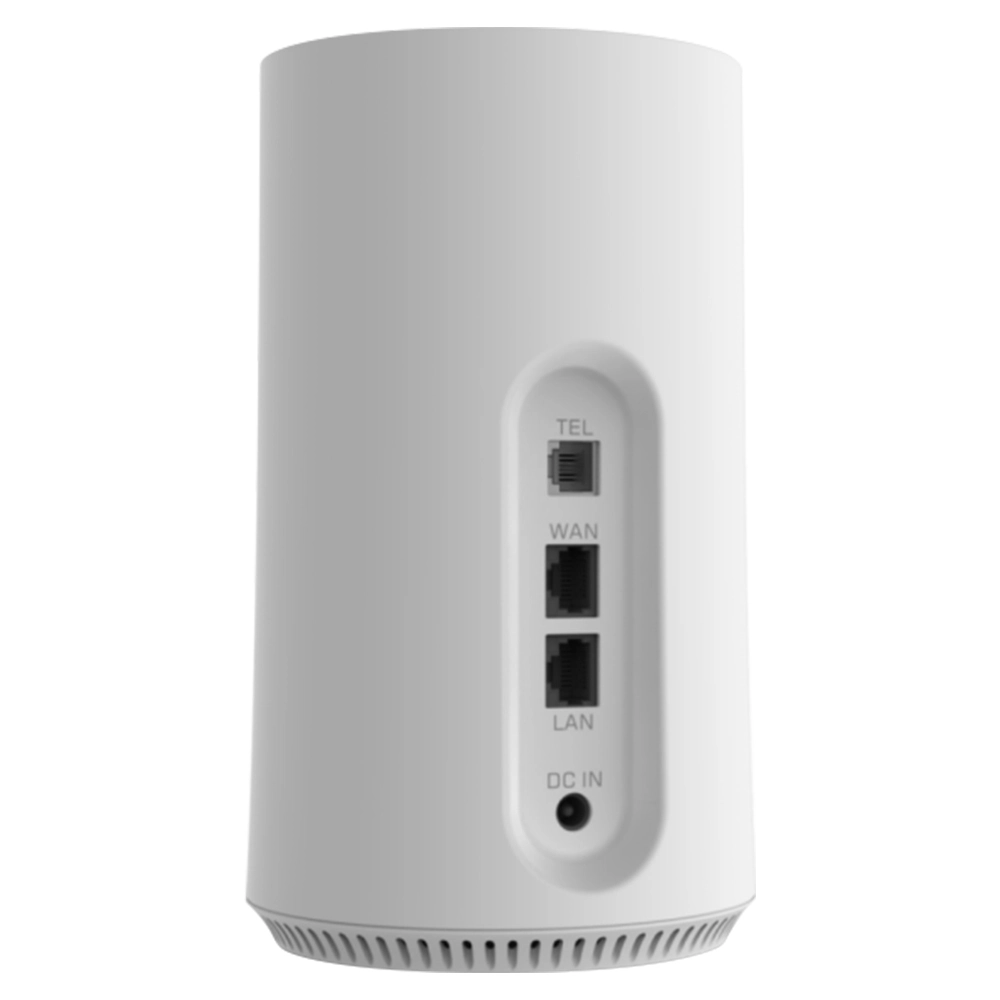
If the outlet and adapter are confirmed to be fine, the problem might lie with the router itself, inspect the DC power input port on the back side of the router. Due to frequent plugging/unplugging or often use of poor-quality adapters, the internal contacts in this port will become loose, deformed or accumulate dust will lead to poor contact. Use a bright flashlight to look inside the port, and try gently to clean it with a cotton swab dipped in a small amount of isopropyl alcohol to make sure the device is completely unplugged first. Also, try slightly adjust the angle and depth at which the power plug is inserted to see if you can occasionally establish a connection and make the lights turn on.
Part 2: Examine the Router Itself and External Environmental Factors
After eliminating power supply issues, we need to focus attention on the router device itself and its environment.
1.Perform a thorough restart and reset operation
Sometimes electronic devices will become completely unresponsive due to software lockups or temporary errors. Try a deep restart: Disconnect the router’s power adapter and wait for at least three minutes. This waiting period will allow internal capacitors in the router to fully discharge, clear any temporary states, then plug the power back in and observe if the lights turn on. If restart doesn’t work, consider to perform a hardware reset. There is usually a hidden reset hole on the router’s casing, containing a micro switch. While the router is powered on, use a paperclip or toothpick to press and hold this switch for about 3 seconds until you see all the indicator lights flicker once and then go out before releasing (on some models, it might appear as all lights turn on briefly, then all turn off). This operation restores the router to its factory default settings and may clear configuration errors that will cause the system to crash, please note that this will erase all your settings such as your Wi-Fi network name and password.
2.Check if the router is overheating
Routers such as strong 4g lte router or cellular router 5g need to work continuously for long time, good heat dissipation is crucial. Touch the router’s casing, if it feels abnormally hot, it might be that poor internal heat dissipation has triggered an overheating protection circuit, which forcibly cuts power to the main chip to protect the hardware. Causes of overheating include: the router being placed in an enclosed space like a TV cabinet, ventilation holes being blocked by debris, severe internal dust buildup from lack of regular cleaning, or inherent design flaws in the device’s cooling. The solution is to immediately power off the device, move it to a well-ventilated, cool place for at least half an hour, and allow it to cool down completely before trying to power it on again. In daily use, ensure it has enough surrounding space for air circulation.
3.Investigate lightning strike or power surge damage
If the failure occurred after a thunderstorm, or if the local power voltage is unstable, the router likely suffered a voltage surge. This surge can enter through the power cord or the network cable (via the WAN port) and instantly damage the router’s internal power module or main control chip. In this case, the device may become completely silent, with all lights off and the power adapter is often damaged as well. Check the adapter for burnt smells or signs of blackening on the metal contacts of the router’s network ports. To prevent this, it is advisable to use a reliable surge-protected power strip for your router.
Part 3: In-depth Analysis of Possible Hardware Failures
If all the external checks above prove ineffective, it is likely that the router’s internal hardware is substantially damaged.
1.Internal power circuit failure
Even if the external power adapter provides correct voltage, the router has internal circuit responsible for converting, filtering and distributing that input voltage to different components like CPU, memory and wireless module. Capacitors, inductors or voltage regulator chips on this power circuit board will fail due to aging, manufacturing defects or overload. For example, bulge or leak electrolytic capacitors are a common fault. Common user cannot directly repair this, but if the device is out of warranty and you have Hands-on ability, you can try to open the casing (be careful and confirm whether this will void the warranty) to look for obvious burn marks, bulging capacitors or scorched components on the circuit board.
2.Damage to the mainboard’s CPU or key chips
The router’s mainboard is its brain and nerve center. If the core SoC or CPU, or the flash memory chip hold the firmware, is damaged due to physical impact, static electricity, overheating or its own lifespan issues, the device will fail to start completely, show no response when powered on. This is a serious hardware failure, usually not worth repairing as the cost of chip-level repair might approach or exceed the price of buying a new router.
3.Physical damage or liquid ingress
Check the router’s casing for cracks or deformation caused by drops or crushing. The delicate circuit board inside can suffer from broken solder joints, cracked traces or displaced components due to physical shock. Furthermore, if liquids like water or coffee are accidentally spilled into the router, even if it seems to work temporarily, subsequent corrosion will lead to short circuits and permanent damage. Signs of liquid ingress might include water stains or rust spots inside the casing or on the circuit board.
Part 4: Seek Professional Support and Make Final Decision
When personal troubleshooting reaches its limit, it’s time to use more professional help to make a judgment.
1.Contact official after-sales support or professional repair personnel
If the router is still under warranty, the safest approach is to immediately stop trying to disassemble it by yourself and contact the brand’s official after-sales service. Provide proof of purchase, the router’s serial number and describe the failure phenomenon. They may offer repair or replacement services. If it’s out of warranty, you can consult professional electronics repair shop to have it diagnosed and receive a repair quote, however you’ve to weigh the repair cost against the device’s residual value–old or low-end routers seldom worth expensive repairs.
2.Consider the economics and necessity of replacing the router
Router technology is evolving rapidly nowadays, Wi-Fi 6 technology is becoming increasingly common. If your router has been in service for many years such over five years, even if repaired, its performance such as wireless speed, device capacity and coverage range may no longer meet the demands of current high-speed internet and smart home devices. In this case, use the repair budget to buy a new, more powerful router that supports newer protocols may be a more cost-effective and far-sighted choice.
3.Establish awareness of routine maintenance and prevention
Prevention is always the best strategy. Provide your router such as strong 4g lte router or cellular router 5g with a stable UPS or surge-protected power strip; place it in an open, cool and dry environment; regularly clean its ventilation holes with a soft brush or a hairdryer on its cool setting; avoid frequently plugging and unplugging the power and network cables; during thunderstorms, consider to disconnect the router’s power and WAN cable temporarily. These simple habits will significantly extend the lifespan of your router and reduce the risk of sudden failures.
Conclusion
Faced with dilemma of all your router’s indicator lights being off, the scientific solution is systematic troubleshooting from the outside in, start from the power outlet. In most cases, the problem lies with the power adapter, poor contact or overheating protection. However, when encounter irreversible hardware damage, we also need to rationally evaluate the pros and cons of repair versus replacement. I hope this detailed guide acts like a patient network engineer, accompany you through every step of troubleshooting. Ultimately, whether it’s bring an old device back to life or unbox a new one, I hope it will help you to restore network connection quickly and back to the wonderful digital world.


What can we do for you?