
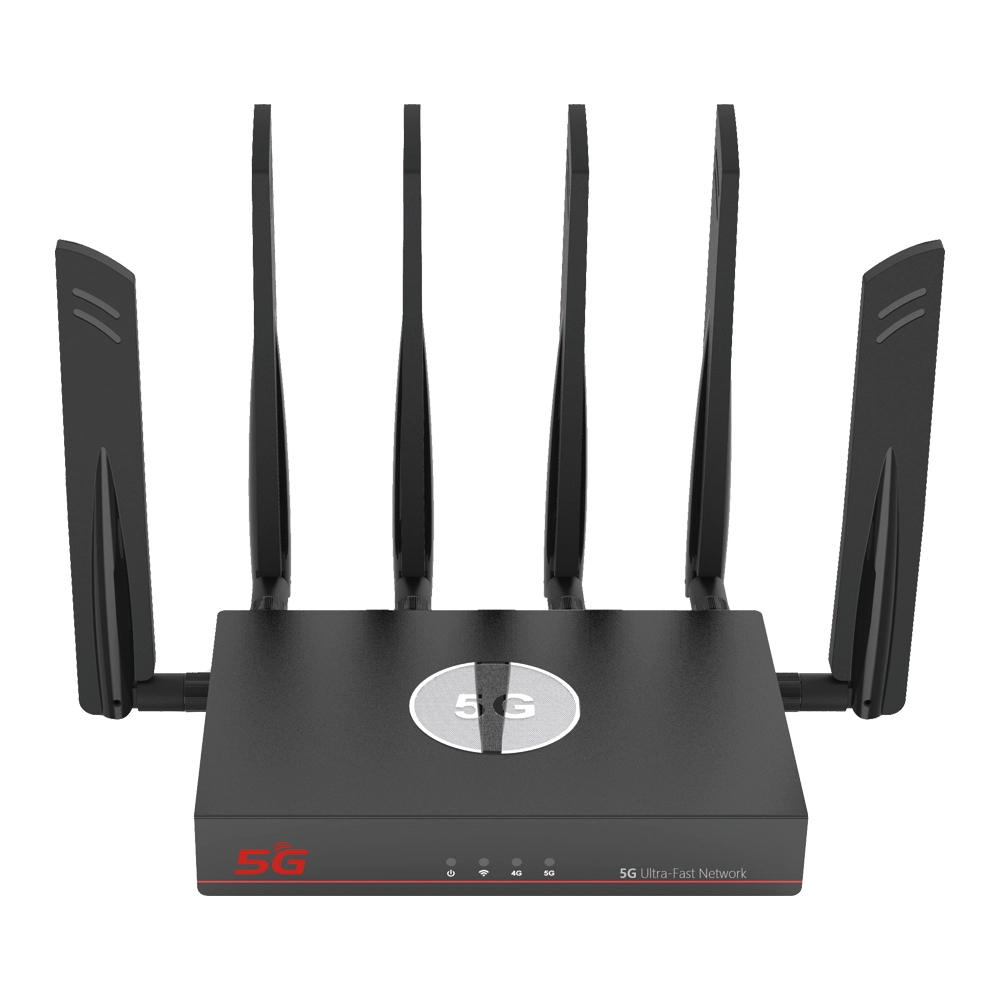
In today’s fast-paced operational landscape, relying on public WiFi or standard smartphone hotspots is no longer sufficient for mission-critical tasks. Whether you are conducting field research, managing a temporary outdoor office, or traveling between international sites, the best mobile router 5g technology provides a dedicated, high-bandwidth gateway that ensures your data remains secure and your speeds remain consistent. This guide outlines the essential steps to configure and maintain a high-performance portable network.
Activating the 5G Core: SIM and Power Management
The performance of a best mobile wifi router 5g starts with how the hardware handles the cellular handshake. Unlike fixed routers, mobile units must manage power consumption while maintaining peak signal locks.
- High-Speed SIM Integration: Insert your 5G-enabled SIM card into the slot. Ensure the card is clean and properly seated. If you are moving between countries, verify that your device is “unlocked” and supports the local 5G Sub-6GHz bands to ensure the widest possible coverage.
- Thermal Strategy: High-speed 5G data transfer generates significant heat. When using the router for extended periods, place it in a well-ventilated area rather than inside a cramped bag or pocket. Overheating can trigger protective speed throttling, which reduces the effective bandwidth.
- Battery Optimization: To prolong the lifespan of the internal 4400 mAh (or higher) battery, avoid keeping the device plugged into a charger 24/7. Instead, charge it to full capacity and allow it to cycle. For stationary use, some professional models allow for “Battery Bypass Mode” to run directly on USB-C power.
Software Configuration for Low Latency and High Security
The software logic behind the best mobile router 5g determines how efficiently the 5G signal is converted into usable WiFi for your connected devices.
- WiFi 6 Protocol Selection: Access the management interface via your browser. If your connected laptops and tablets support WiFi 6 (802.11ax), ensure this protocol is enabled. WiFi 6 handles multiple device connections far more efficiently than older standards, significantly reducing latency during video calls or large file transfers.
- APN Manual Tuning: While most devices use “Auto-APN,” manually entering the APN details from your carrier can sometimes resolve “limited connectivity” issues in certain regions. Always double-check that the “Data Roaming” toggle is switched to ‘On’ if you are utilizing the device across international borders.
- Encrypted Tunneling (VPN): Security is a primary reason for using a dedicated mobile router. Configure the built-in VPN client (such as L2TP or PPTP) directly in the router settings. This ensures that every device connected to your portable WiFi is automatically protected by an encrypted tunnel, shielding your data from interceptors.
To help you maximize the utility of your portable 5G gateway, refer to the following operational reference:
Field Maintenance and Signal Troubleshooting
Maintaining the status of the best mobile wifi router 5g involves monitoring the environment and keeping the system software current.
- Signal Metrics Monitoring: Don’t just look at the “bars.” Use the Web UI to check the RSRQ (Reference Signal Received Quality). If the quality is low despite high signal strength, it often indicates local interference; moving the device just two meters can often solve this.
- FOTA (Firmware Over-The-Air): Regularly navigate to the “System Update” menu. FOTA updates often include modem firmware patches that improve compatibility with new 5G tower configurations being deployed by global carriers.
- Master Reset Protocol: If you encounter persistent connectivity issues after changing carriers, use the recessed “Reset” button. Holding it for 10 seconds will clear the DNS cache and network tables, allowing for a clean “re-handshake” with the local 5G network.
Mobile 5G Connectivity FAQ
1. Is a mobile 5G router faster than my phone’s hotspot?
Yes, significantly. The best mobile router 5g features dedicated 4×4 MIMO antennas and specialized modems designed for continuous data throughput. Unlike phones, which prioritize battery and heat management by throttling hotspot speeds, a mobile router is engineered to maintain high-performance links for multiple hours.
2. Can I use the device while it is charging?
Yes. Professional mobile routers are designed to operate while connected to a power source. However, for the best thermal performance, ensure the device isn’t covered by materials that trap heat while it is charging and transmitting simultaneously.
3. How many devices can I connect to my mobile WiFi at once?
Most high-end 5G mobile routers can support up to 32 concurrent users. However, for the best performance during data-intensive tasks like 4K streaming or large cloud backups, we recommend keeping the active device count under 10.
4. What happens if 5G is not available in my area?
The router is backward compatible with 4G LTE-Advanced (Cat 16/20) networks. It will automatically switch to the fastest available 4G band, ensuring you remain connected even in regions where 5G infrastructure is still being built out.
5. How do I secure my mobile router from unauthorized access?
Beyond using a strong WPA3 password, you should hide the SSID (Network Name) so it doesn’t appear in public scans. You can also enable “MAC Filtering” in the settings to ensure that only specifically registered devices (like your work laptop) can join the network.
6. Does the 5G signal drain the battery faster than 4G?
5G processing requires more power due to higher data rates and more complex signal processing. To maximize battery life when a high-speed connection isn’t critical, some users choose to switch the device to “4G Only” mode via the settings menu.


What can we do for you?