
In demanding network environments—ranging from automated warehouses to remote monitoring stations—stability and security are the benchmarks of equipment value. A professional industry router is only as powerful as its configuration. When properly tuned, these devices unlock significant bandwidth potential and ensure reliable data transmission under extreme conditions. The following guide provides a comprehensive walkthrough for setting up and optimizing your device for peak efficiency.
Initial Hardware Deployment and Environment Calibration
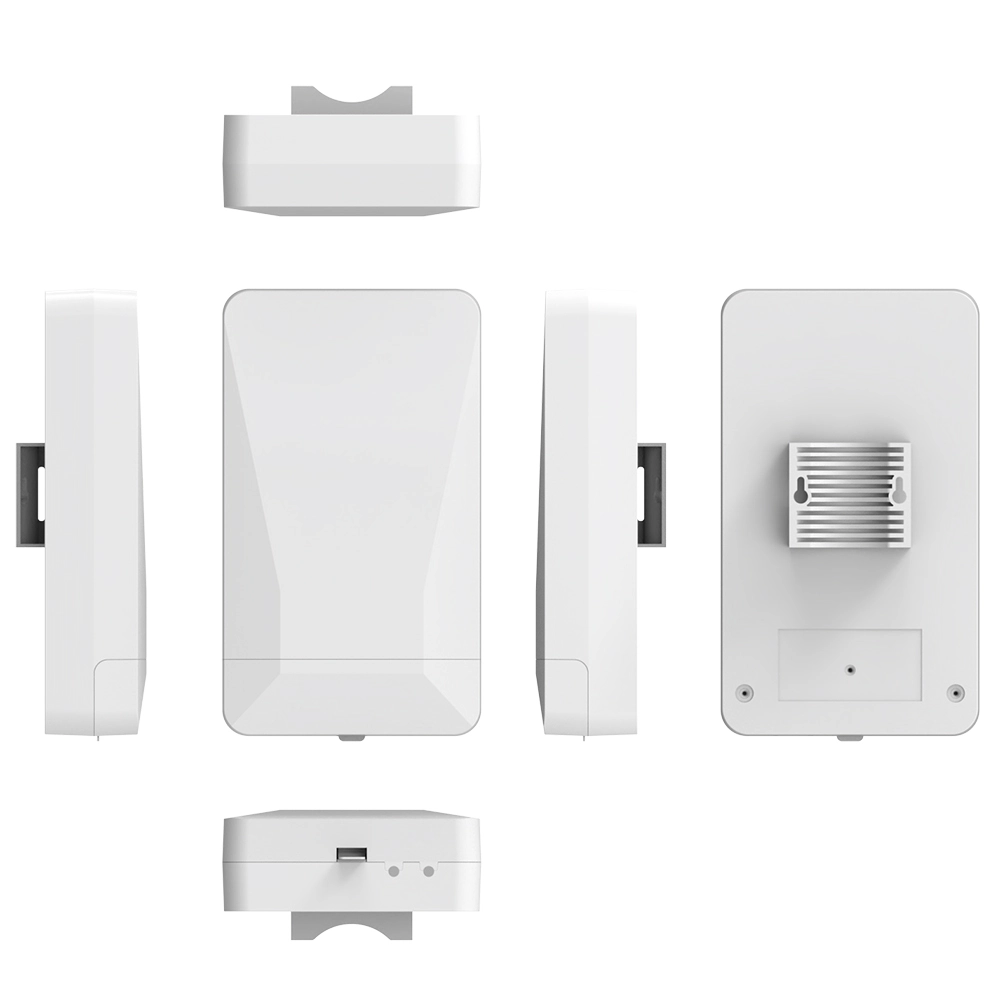
Before diving into software configurations, the physical installation determines nearly 50% of your total signal quality. For a high-performance lte router industry solution, placement is critical to avoiding interference and physical signal degradation.
- Antenna Calibration: Ensure all external LTE and WiFi antennas are securely tightened. In areas with weak signal coverage, it is advisable to mount the device in an elevated, open position and keep the antennas vertical to achieve the best polarization gain.
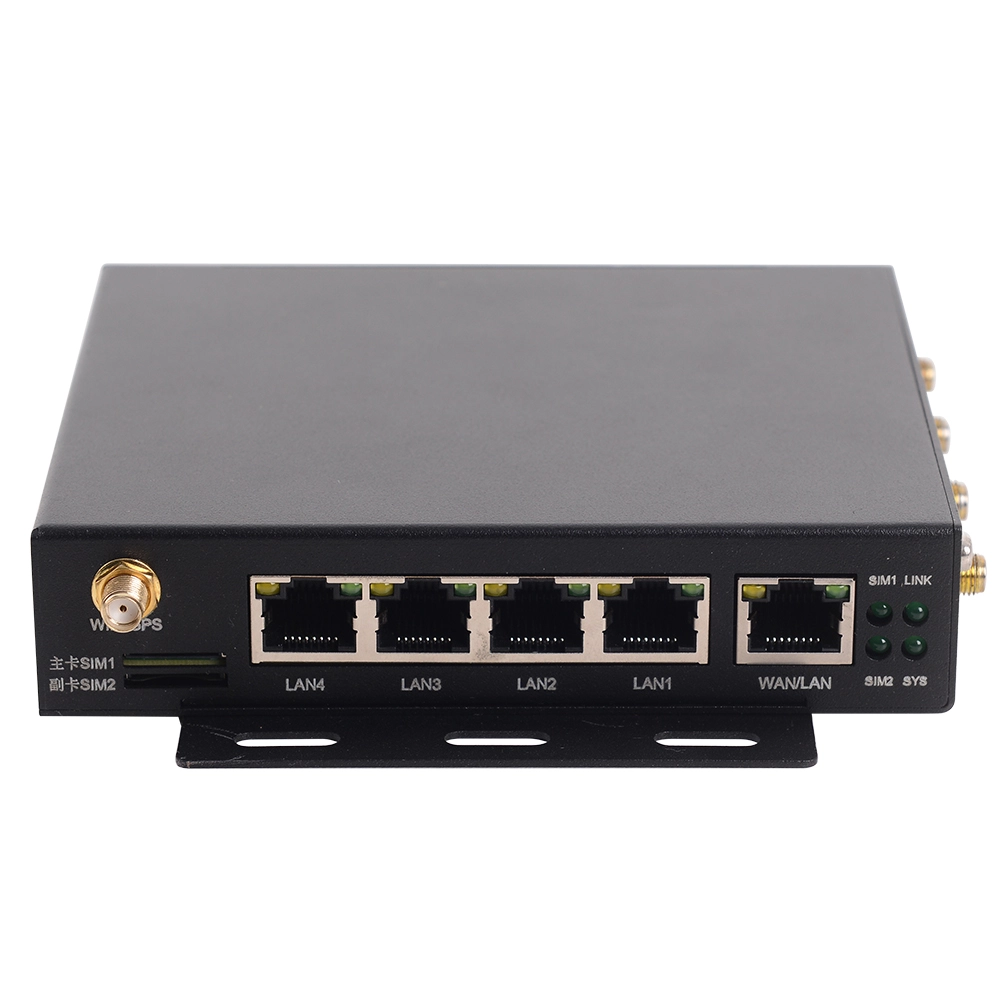
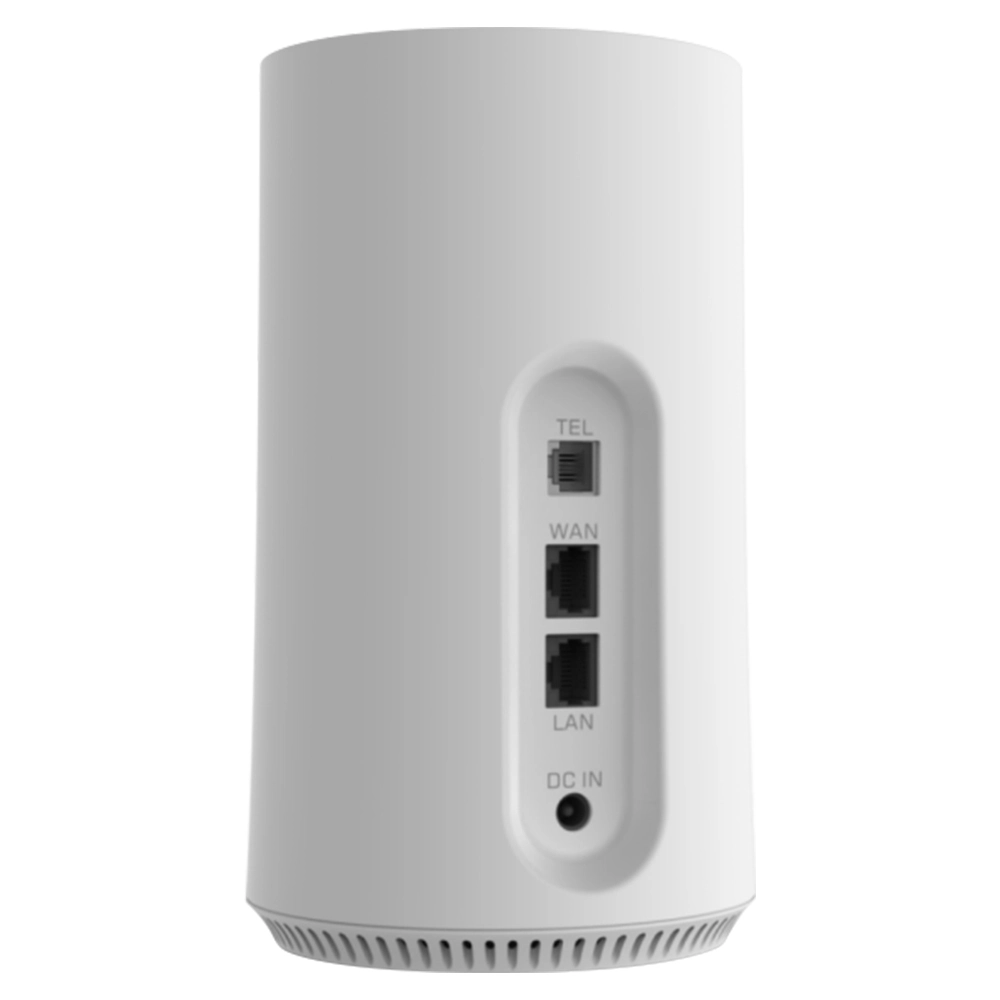
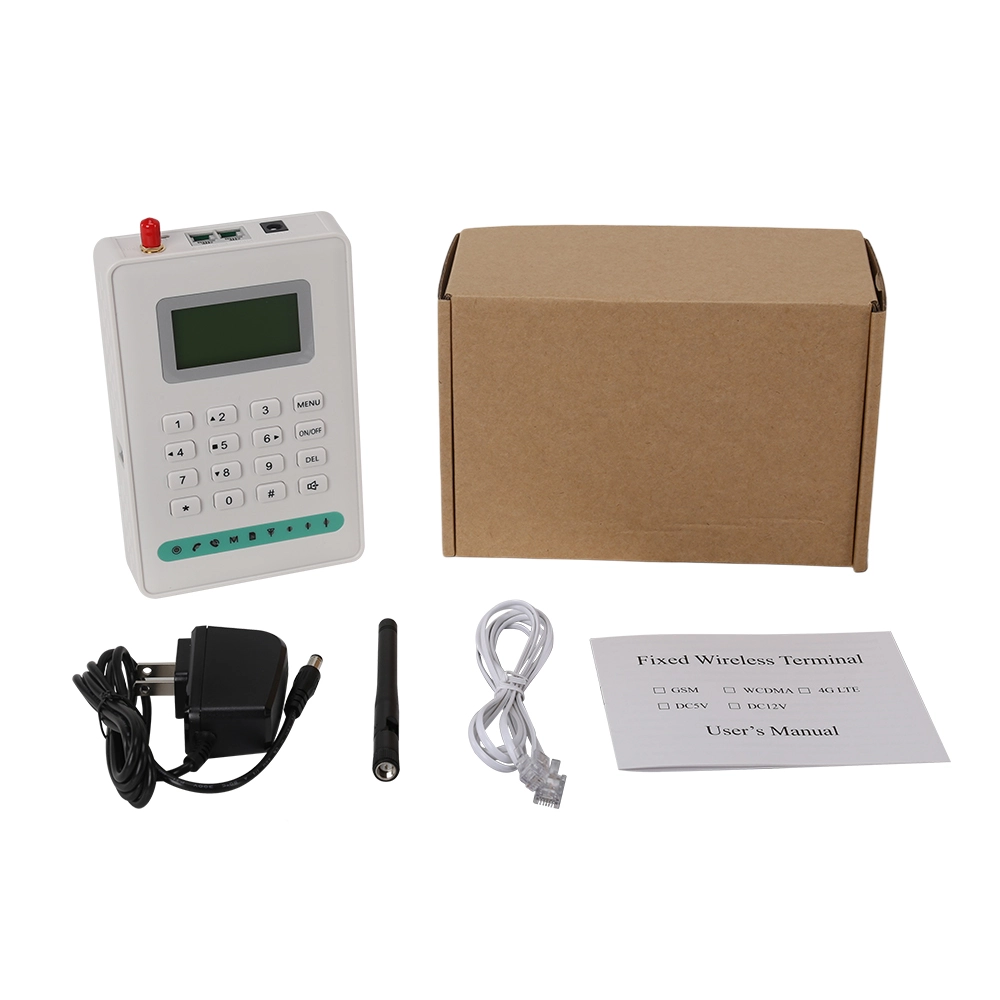
- Power and Connectivity: Use the specialized industrial power adapter provided. Connect your Ethernet cable to the LAN port and the other end to your computer.
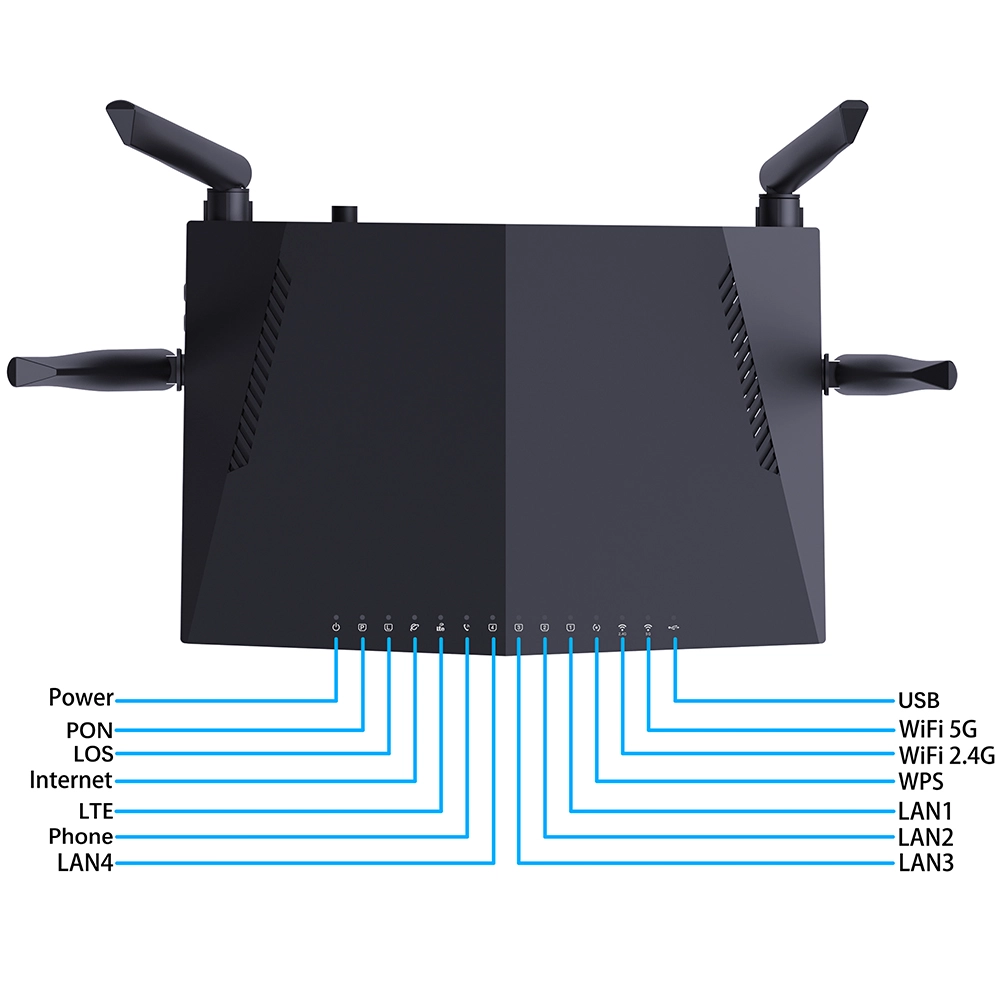
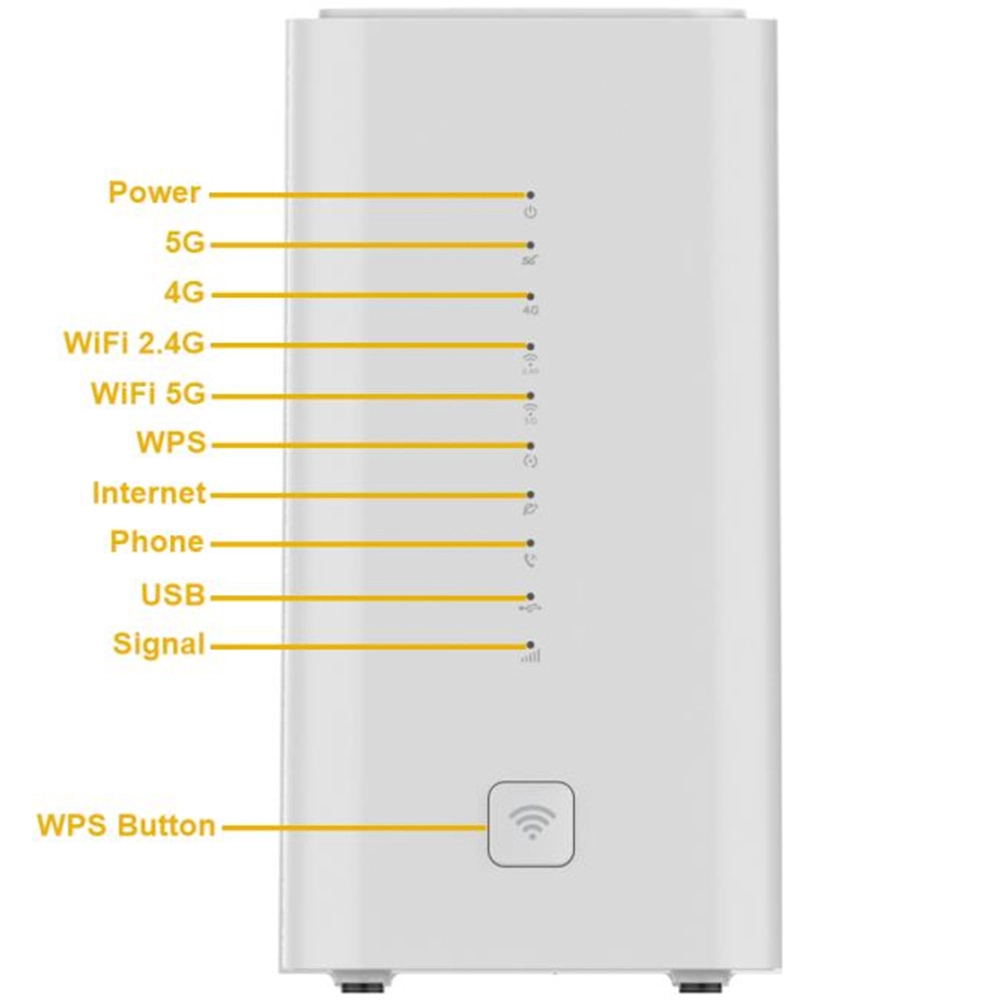
- Status Verification: Observe the LED indicators on the front panel. A healthy operational state is indicated by a solid “Power” light and an LTE signal indicator showing green or blue, representing excellent signal strength.
Accessing the Web UI and TCP/IP Configuration
The strength of professional-grade hardware lies in its granular backend control. To begin the setup, you must access the local management interface.
- Obtain IP Address: Set your computer to “Obtain an IP address automatically” (DHCP).
- Access the Dashboard: Open a web browser and enter the default gateway address (typically 192.168.1.1).
- Authentication and Security: Enter the default username and password. To safeguard your network, we strongly recommend navigating to the “Password Configuration” section and changing the administrative password during your first login.
Optimizing LTE and Wireless Connectivity Parameters
This is the most critical stage for ensuring zero-downtime connectivity, especially when utilizing an industrial router for high-volume data backhaul or remote site management.
- WAN Connection Mode: Navigate to the network settings and ensure the WAN mode is set to “LTE.” If you are using a private network from a specific carrier, manually input the APN (Access Point Name), username, and password.
- Wireless Channel Optimization: In industrial areas, the 2.4GHz frequency is often congested. We recommend setting the channel bandwidth to a 20/40MHz auto-switch and manually selecting a less crowded channel such as 1, 6, or 11.
- Enable Watchdog Functions: A standard feature in professional equipment, the Watchdog mechanism monitors network responsiveness. If the connection fails, the device will automatically reboot the LTE module or the entire system, preventing the need for costly manual onsite maintenance.
To help you choose the correct configuration based on your specific deployment needs, refer to the following technical reference:
| Configuration Item | Recommended Setting (Stability Focus) | Best Use Case |
| Connection Mode | Fixed LTE / 4G/5G Priority | Remote monitoring, mobile base stations |
| DHCP Lease Time | 1440 Minutes (24 Hours) | Static onsite equipment connections |
| MTU Size | 1420 – 1460 (Carrier Dependent) | Reducing packet fragmentation for efficiency |
| Firewall Level | Medium/High with SPI Enabled | Preventing external network malicious scans |
Firmware Management and Remote Maintenance
To stay ahead of evolving security threats and access the latest performance features, keeping your industry router firmware updated is a vital maintenance task.
- FOTA (Over-the-Air) Upgrade: Enter the “Firmware Upgrade” section and click “Check” to detect if a new version is available on the remote server.
- Manual Update: In offline environments, download the specific firmware file from the official resource center and use the “Upload” function. Note: Never power off the device during the upload process, as this can make the system unbootable.
- Configuration Backup: Before making significant adjustments, use the “Backup Configuration” tool to export your current settings. This ensures that you can rapidly restore operations if a configuration error occurs.
A stable network is the nervous system of modern industrial automation. By following these standardized operational steps, you transform a hardware tool into a powerful data hub, ensuring every user and connected device benefits from a high-speed, secure, and resilient connection.
Technical FAQ for Operations
1. Why is the LTE indicator flashing and failing to connect?
First, verify that the SIM card does not have a PIN lock active. You can disable the PIN using a mobile phone or enter it manually in the Web UI. Additionally, ensure the antennas are correctly attached and the APN settings match your service provider’s requirements.
2. How do I maintain performance in high-temperature environments?
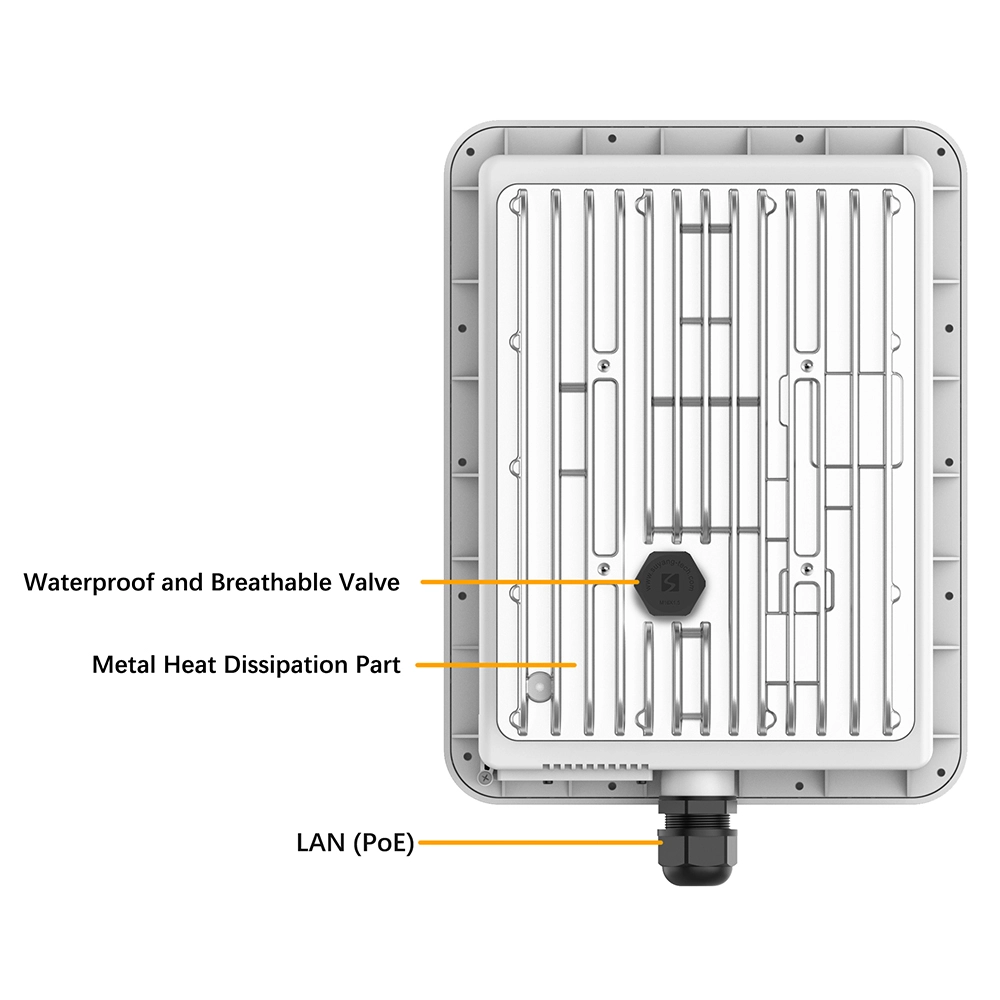
Our industrial routers utilize specialized heat-dissipating designs and wide-temperature components. However, for best results, avoid installing the device in direct sunlight and ensure that airflow around the vents is not obstructed.
3. Can I manage multiple devices remotely?
Yes. These units support TR069 protocols and SNMP management, allowing IT teams to monitor the status of hundreds of routers deployed across different regions from a central office, facilitating bulk configuration and remote diagnostics.
4. What should I do if I forget the management password?
While the device is powered on, press and hold the “Reset” button for approximately 10 seconds until the LEDs flash. This restores the device to factory defaults (including the default IP and credentials). Note that this will erase all custom configurations.
5. Does the industrial router support VoLTE voice functions?
Select models equipped with an RJ11 port support VoLTE or VoIP. You can connect a standard telephone to maintain high-definition voice communication while simultaneously handling data transmission—ideal for emergency communications in remote areas.
6. How can I improve WiFi penetration through walls or obstacles?
WiFi signals are heavily affected by physical barriers. Beyond placing the device at a higher elevation, you can adjust the “Transmit Power” to its maximum setting in the Web UI. If coverage remains insufficient, consider using models with Mesh capabilities or adding professional access points.


What can we do for you?