
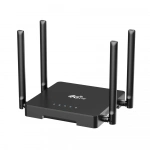
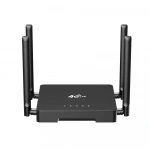
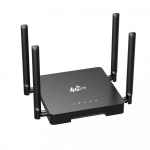
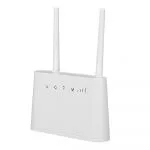
Cat 4 openWRT 2.4G wifi 4g hotspot router
| Item no.: | HY8810B |
|---|---|
| Chipset: | ZX297520V3+RTL8192ES |
| 4g frequency: | FDD: B1/3/5/7/8/20/28; TDD: 38/40/41; WCDMA:B1/5/8 |
| Price: | USD 23.00 - 35.00 |
Product Description
Performance Features and Material
| Advantages | Cat 4 LTE Speeds: Capable of achieving Category 4 LTE speeds for fast mobile internet connectivity. 2.4G WiFi: Offers 2.4GHz WiFi for reliable wireless connections, suitable for various devices. OpenWRT Compatibility: Supports OpenWRT, enabling advanced users to customize and extend the router's functionality with custom firmware. External Network Port: Features a LAN port for connecting external devices, enhancing network capabilities. Remote Management: Allows for remote management, providing convenience for monitoring and controlling the network from anywhere. |
| Product Description | The HY8810B is a Cat 4 4G hotspot router designed for versatility and performance. With 2.4G WiFi and OpenWRT support, it offers a robust platform for both home and professional use. The inclusion of a LAN port makes it easy to connect external devices like printers, while remote management capabilities keep you connected to your network, no matter where you are. Powered by the ZX297520V3+RTL8192ES chipset, this router ensures reliable performance. Priced between USD 23.00 and 35.00, the HY8810B is an excellent choice for those seeking a reliable and customizable internet solution. |
| Guidelines for use |
|
| How to Install |
|
| How to Set Up |
|
| Usage Precautions |
|
Reviews

Nancy Murphy
December 17,2024
External network port suitable for expanding devices.
I connected a printer via the LAN port, which is very convenient for office use, with a full range of functions.

Matthew Perry
December 12,2024
Supports remote management functions.
The router can be managed through a remote control interface, which is great for those who want to know the network situation when they are not at home.


What can we do for you?