
For years, households have been tethered to physical cables and long-term ISP contracts. However, the emergence of the best 5g sim router for home use has fundamentally shifted the balance of power back to the consumer. Whether you are living in a newly developed area where fiber hasn’t reached yet, or you are simply tired of slow “last-mile” copper connections, switching to a SIM-based system offers immediate, high-speed relief. This guide walks you through the steps to optimize your home environment for a professional-grade wireless experience.
Phase 1: Planning for Whole-Home Coverage
A common mistake when deploying home internet 5g is treating the router like a standard indoor appliance. Because 5G relies on higher-frequency radio waves, its ability to penetrate thick walls is slightly lower than older 4G signals.
- Locate the “Signal Gateway”: Before plugging in your device, use your smartphone to find the area in your home with the strongest 5G reception—typically near a south-facing window or on the upper floor. This is where your best 5g sim router for home should reside.
- Nano SIM Activation: Ensure your 5G SIM card is activated and has the PIN lock removed via a mobile phone before insertion. A standard Nano SIM is the heartbeat of your system; ensuring it is seated correctly in the slot prevents intermittent connection drops.
- Antenna Orientation: If your home router features adjustable external antennas, orient them in a “fan” pattern. This maximizes the spatial diversity of the signal, helping the router capture reflections from nearby buildings to strengthen the internal link.
Phase 2: Configuring the Gateway for Household Traffic
Once the hardware is powered on, the software configuration determines how well the 5G bandwidth is shared between your family’s laptops, smart TVs, and IoT devices.
- Dual-Band Management: Access the Web UI and enable “Smart Connect” or “Band Steering.” This allows the router to automatically move high-bandwidth devices (like a 4K streaming box) to the 5.0GHz band while keeping low-power smart home sensors on the 2.4GHz band.
- Security Hardening: Always change the default administration password and enable WPA3 encryption to ensure that your private home network remains shielded from external intrusions.
- Parental Controls and Guest Access: For a modern home internet 5g setup, utilize the built-in guest network feature. This keeps your children’s devices or visitors’ phones on a separate VLAN, protecting your primary work-from-home data from potential malware on other devices.
To help you manage expectations for your new home network, refer to the following performance optimization table:
| Optimization Task | Recommended Action | Expected Result |
| Placement | Near window / Elevated | 20-40% increase in RSRP (Signal Strength) |
| WiFi Channel | Use “Auto” or DFS Channels | Reduced interference from neighbor’s WiFi |
| Protocol | Enable WiFi 6 (802.11ax) | Lower latency during multi-user gaming |
| Maintenance | Scheduled Weekly Reboot | Clears cache and stabilizes LTE/5G handshake |
Phase 3: Monitoring and Long-Term Stability
The best 5g sim router for home isn’t just about “set and forget.” A small amount of periodic maintenance ensures your speeds stay at their peak.
- Link Detection Settings: Configure the router’s “Auto-Ping” or “Watchdog” feature. Set it to ping a reliable server (e.g., 8.8.8.8). If the 5G tower momentarily glitches, the router will automatically reset its cellular module, restoring your internet without you needing to unplug the device.
- Firmware Vigilance: Periodically check for FOTA (Firmware Over-The-Air) updates. Manufacturers often release patches that optimize the modem’s compatibility with local carrier tower upgrades, which can significantly improve download speeds over time.
- Data Threshold Alerts: If your home internet 5g plan has a data cap, set a notification threshold at 80%. This prevents the frustration of sudden speed throttling or unexpected costs at the end of the month.
Home 5G Connectivity FAQ
1. Is a 5G SIM router stable enough for a permanent home office?
Yes. Modern 5G routers utilize 4×4 MIMO technology and advanced chipsets (like MediaTek or ASR) that are designed for 24/7 uptime. For remote workers, this setup often provides more consistent upload speeds than traditional cable internet.
2. Can I connect my old wired devices to a 5G home router?
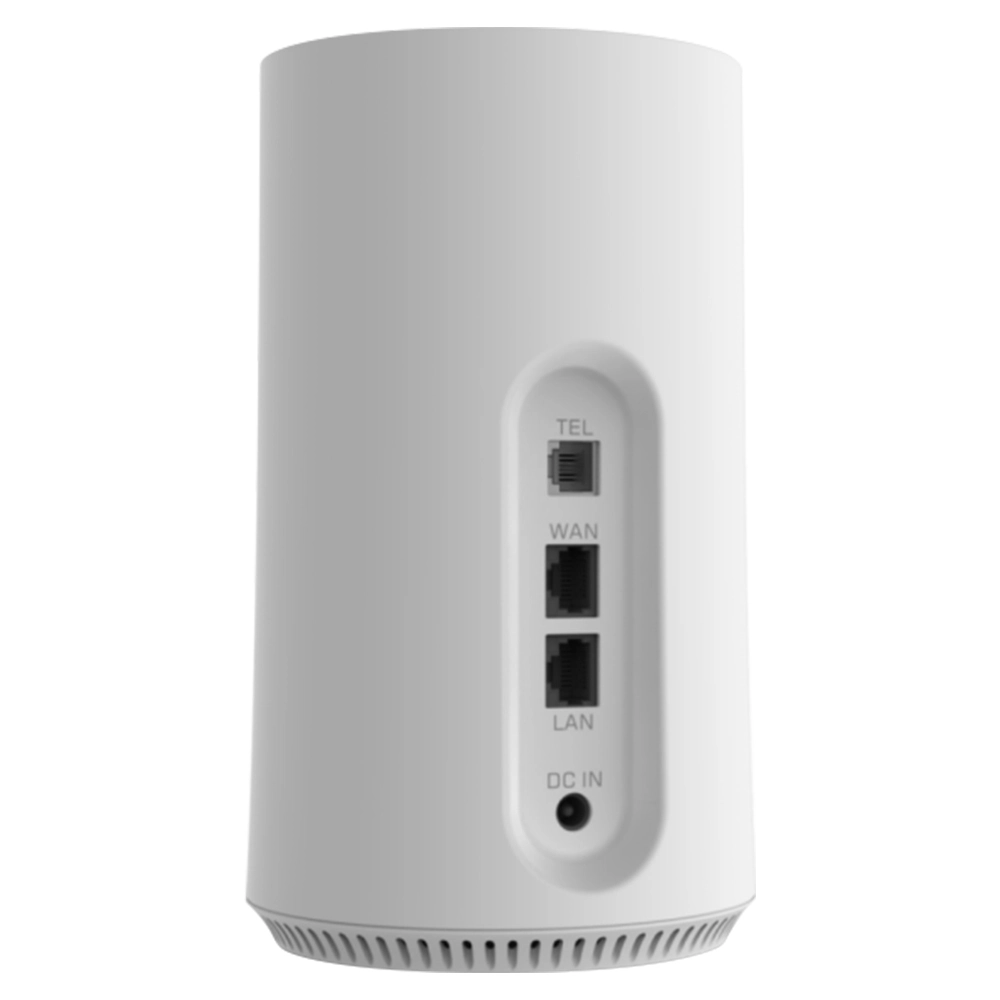
Absolutely. Most high-quality home internet 5g routers come equipped with multiple Gigabit LAN ports. You can plug in your desktop PC, gaming console, or a network switch directly to the router to get the lowest possible latency.
3. Does the weather affect my home 5G speeds?
While heavy rain or snow can cause slight signal attenuation (known as rain fade), professional-grade 5G routers are designed to compensate for this. You might notice a very slight dip in peak speeds during a storm, but for general browsing and streaming, the connection remains stable.
4. What should I do if the signal is weak inside my house?
If your home has thick concrete walls, the best 5g sim router for home use is one that supports external antennas. You can place an antenna outside on your roof or balcony and run a cable to the router inside, bringing the “outdoor” signal quality into your living room.
5. How many devices can a 5G home router support simultaneously?
A high-end WiFi 6 enabled 5G router can typically support between 32 and 64 devices. However, for the best experience during 4K streaming or gaming, we recommend maintaining a balance of active high-bandwidth devices.
6. Is it easy to switch carriers with a SIM-based router?
One of the biggest advantages of a best sim based router is that it is usually carrier-unlocked. If you find a better data deal from another provider, you simply swap the SIM card, update the APN settings in the Web UI if necessary, and you are back online within minutes.


What can we do for you?